 OZIL AIOne photo. Your goal video.
To make an Ozil AI video, open the photo-to-video generator, choose one clear photo, select a video format and sound option, then sign in and generate with credits. Preview the whole result before downloading the MP4. You do not need to film yourself playing football or write a prompt in Ozil AI.
This guide is written by the Ozil AI team for ozilai.app. Watching examples is free; making your own video requires paid credits. The steps below explain the choices that matter before you spend them, and how to judge what comes back.
Want the story behind the clip first? Read what the Ozil AI trend is, which goal inspired it, and why the character versions are funny.
AI-illustrated cover; see the unretouched video examples below.
First, check that this is the video you want
The appeal of the Ozil goal AI trend is an unexpected scorer in a composed football highlight: a goalkeeper commits, an opponent is beaten, and the character carries on in familiar everyday clothes. Recognition comes from both the person and the movement.
The football inspiration is Mesut Özil's late winner in Arsenal's 3–2 victory at Ludogorets on 1 November 2016, documented in UEFA's match report. An AI interpretation can evoke that moment without reproducing its original camera, players or every touch.
An existing Ozil AI gallery example: an unexpected scorer in a purple cardigan. Play it to inspect movement, rather than judging only its poster.
About the examples: the two videos in this guide come from our existing gallery and run for approximately 15 and 9 seconds. They illustrate the look and movement; they are not demonstrations of the current duration options. The small portraits on the homepage are independently AI-reconstructed references, not the historical upload photos. We are not presenting a reconstructed portrait as a verified before-and-after input.
Choose the right creation route
Still deciding which tool to use? Our simple Ozil Goal AI generator comparison looks at photo inputs, prompt requirements and setup across dedicated generators and general AI video tools.
| What you want | The route to check | Before you start |
|---|---|---|
| A new football scene using your photo, with the action instructions already supplied | Ozil AI's photo-to-video workflow | Compare the actual examples with your expectations. New motion and details can vary. |
| A particular edit you saw inside CapCut | That specific CapCut project or template | Check its preview, required inputs and export conditions. A similar title does not establish the same effect. |
| To write your own shot directions or work with a reference clip | A tool that explicitly supports those inputs | Verify its current controls. A text prompt, an image reference and a motion reference serve different purposes. |
Ozil AI uses your photo to generate a new interpretation. It does not paste your face onto the original match recording. If your requirement is the exact broadcast shot with only the face changed, compare that requirement with our examples before buying credits.
Step 1: choose a photo that shows the person and the outfit
Prepare one JPG, PNG or WebP file up to 10 MB. Choose a photo you own or have permission to use. You do not need a football pitch in the background or a professional player portrait.
The useful question is not simply “selfie or full body?” It is which details must remain recognizable?
| Photo framing | Information it provides | Information the AI still has to invent |
|---|---|---|
| Head and shoulders | A larger view of the face and hairstyle | Most of the body, clothing below the crop and shoes |
| Waist-up or three-quarter view | Face plus more of the recognizable outfit | Anything outside the frame, often including feet |
| Full body | Overall silhouette, trousers and footwear | Fine facial detail may be harder to see if the person is small in the image |
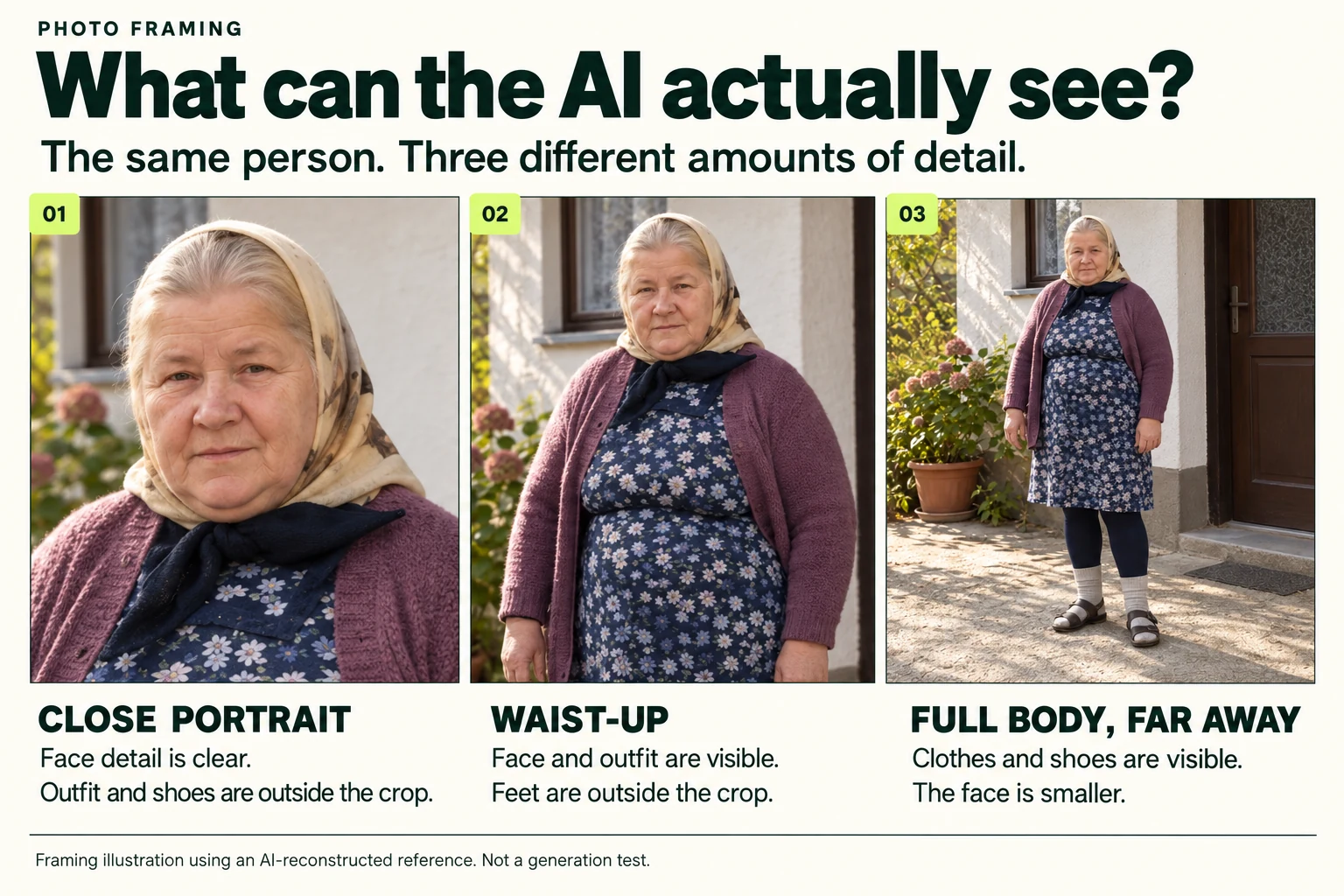
Framing illustration using the same AI-reconstructed character reference, not an original upload or a generation test. It shows which details are visible at different framings; it does not establish a winning crop for every person.
For a first attempt, make the face easy to inspect and include enough clothing to convey the character. A familiar cardigan or jacket may be more useful to the joke than a football kit. Avoid a group photo, a heavily blurred face or a phone covering the mouth. If you crop, keep the sharp original: cropping does not recover detail that was never there.
A practical check: open the photo at the size you would normally view it on your phone. Can you recognize the person without zooming, and identify the outfit? If only one is clear, decide which matters more or choose a better photograph. No crop guarantees perfect likeness or anatomy.
Step 2: upload the photo and choose the clip
Open the Ozil AI upload area and press Choose your photo. Check the selected preview before continuing. You can change the photo before starting the task.
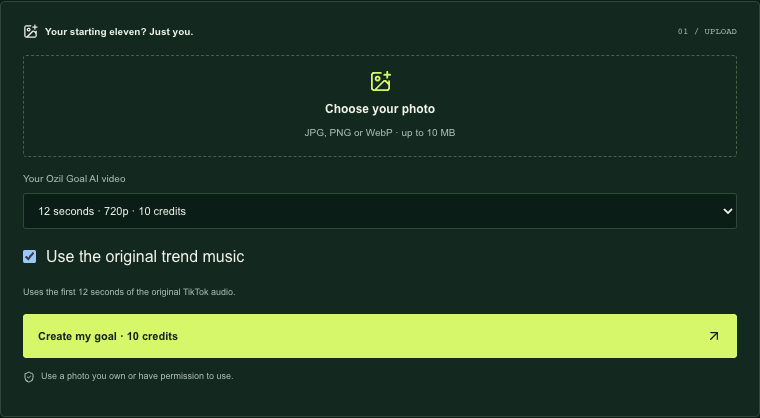
Actual Ozil AI interface, captured on 17 October 2026 while signed out. No paid generation was submitted to make this screenshot.
The available formats and their credit costs are:
| Format | Resolution | Credits per submission | What you are choosing |
|---|---|---|---|
| 5 seconds | 480p | 5 | A compact defender-beating move and finish. |
| 12 seconds | 720p | 10 | More time for the goalkeeper setup, dribble and finish. |
Both options request a vertical 9:16 MP4. These are output settings, not guarantees that every action will occur exactly as directed.
Choose the shorter option when you mainly want a quick character reveal and a decisive move. Choose the longer option when the buildup matters. Do not choose only by resolution: more pixels cannot repair a missing goal, an altered face or a ball that moves incorrectly. Equally, squeezing a long sequence into a short clip leaves less time for each action.
Step 3: choose the sound before generating
The Use the original trend music option is selected by default. With it selected, the video uses the opening portion of the configured trend recording for your chosen duration, at its original speed. With it cleared, the AI is asked to generate the audio instead.
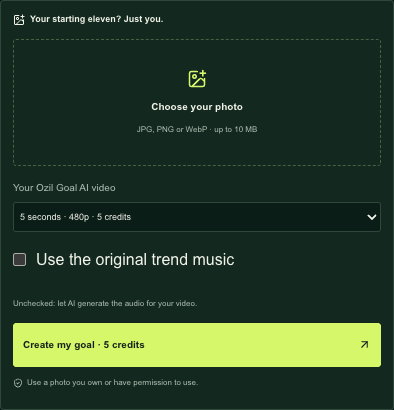
The shorter format with the music option cleared. Changing these controls does not itself start a paid task.
This choice affects what you receive; it is not an instruction to find a song or paste an audio link. Listen to the finished file with sound enabled before sharing. If you plan to add a different soundtrack in an editor, avoid accidentally layering it over an existing music track. The presence of audio in an example does not establish music rights for every use.
Step 4: sign in, check credits and submit once
Press Create my goal. If you are signed out, sign in first and then continue. If your balance is too low, the generator shows the credit packs so you can choose one before checkout.
| One-time pack | Price in USD | Credits | 12s submissions | 5s submissions |
|---|---|---|---|---|
| Single | $6.99 | 10 | 1 | 2 |
| Squad | $29.99 | 60 | 6 | 12 |
| Club | $49.99 | 120 | 12 | 24 |
| Legend | $129.99 | 360 | 36 | 72 |
The last two columns are alternative ways to spend the same balance, not quantities you receive together. They count submissions at the selected format, not a guaranteed number of results you will love. You can also mix formats. Purchases are one-time and credits do not expire; check the current pricing before checkout.
Buying credits and creating a video are separate actions. After checkout, return to the generator with the same account. Check your balance, photo, format and sound option, then submit the video. If the selected photo is no longer visible after leaving the page, select it again. A payment confirmation is not a finished-video confirmation.
Once generation starts, follow the existing task's status. Processing time varies. If the page is slow to refresh, check the task rather than repeatedly pressing Create. The My videos control lets signed-in users return to their saved tasks.
Step 5: review the motion, not just the face
A convincing opening frame can hide an incomplete football sequence. Watch once at normal speed to see whether the joke works, then scrub through the touch, the opponent's reaction and the finish.
Here are three unretouched frames from the purple-cardigan example above:
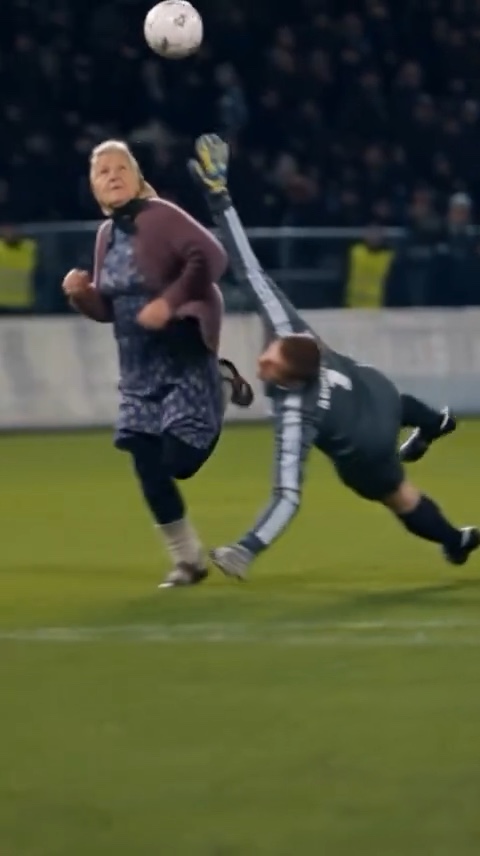
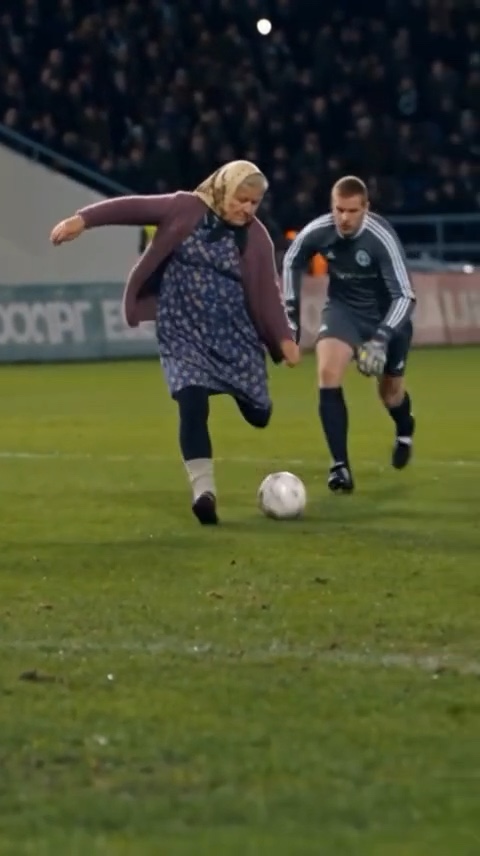
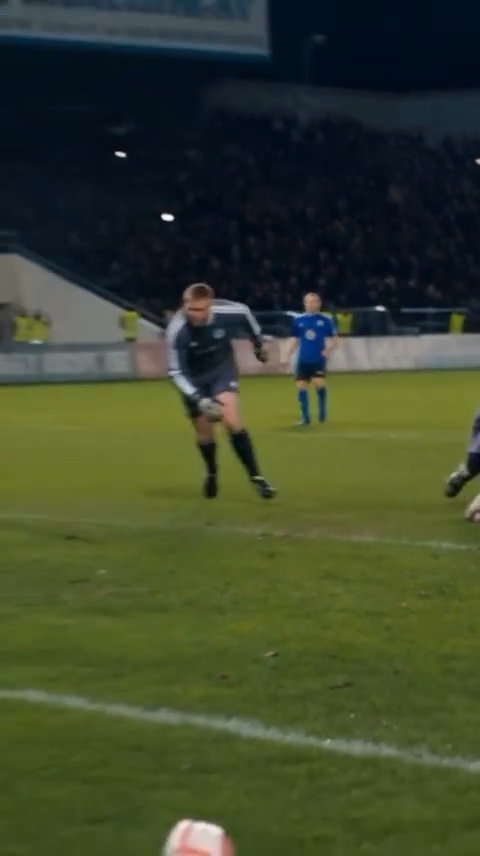
At three seconds, you can inspect the airborne ball and the opponent's position. At nine seconds, check how the play connects to the next touch. At fourteen seconds, the ball is near the lower edge and the goal mouth is outside this frame: this still does not prove that the ball crossed the goal line. Watch the full ending rather than using one attractive frame as proof of a complete goal.
Use the same checks on your own download:
| Check | What to look for |
|---|---|
| Identity | Does the face stay recognizable when the head turns, and does the outfit remain reasonably consistent? |
| Ball continuity | Is there one ball, with a path you can follow through touches and camera movement? |
| Feet and balance | Does the kicking foot separate from the ball, and can the supporting leg plausibly carry the body? |
| The beaten opponent | Does the scorer create space, or do bodies intersect and positions suddenly reset? |
| The finish | Can you follow the shot toward the goal opening? A cut, a crowd reaction or a celebration alone does not establish a goal. |
| Sound | Is the chosen audio audible, and does it sound right in the downloaded file? |
A second existing gallery example. Compare identity, outfit, framing and movement with the first; a different character can produce a different interpretation of the football idea.
Step 6: download, then check the actual file
When your result is ready, use Download MP4. Ozil AI does not add a watermark. Keep the original download before trimming or adding captions, so you can return to it later.
On a phone, the browser may open the MP4 first. Use its available save or download action, then confirm the file exists on your device and plays with sound. Watching a preview in the browser is not the same as saving the file.
The vertical file is suitable for a vertical edit, but preview it inside your posting app: interface buttons and captions can cover action near the edges. Avoid trimming away the decisive touch or finish just to shorten the setup. If you post a realistic AI clip to TikTok, follow its AI-generated content disclosure guidance and enable the appropriate label. Do not present the scene as a real match you played.
If something goes wrong, diagnose before trying again
| What happened | A useful next step |
|---|---|
| The photo is rejected | Check the file type and size. Use an actual JPG, PNG or WebP file; renaming a different file's extension does not convert it. |
| The face or outfit changes | Try a sharper reference that shows the details you care about. Changing the photo is a new attempt, not a repair to the completed clip. |
| The ball, legs or finish look wrong | Identify the exact moment first. A tighter crop or more resolution does not guarantee a fix for motion. Decide whether a new paid attempt is worthwhile. |
| The task is still processing | Check that same task and your account history. Do not create duplicate jobs just because the status is slow to refresh. |
| The submission needs review | Keep the existing task and contact support. An uncertain submission is not a confirmed failure. |
| Payment completed but credits seem missing | Confirm the account and existing payment record before buying another pack. Contact support if the balance remains incorrect. |
A confirmed failed render and a result you dislike are different outcomes. Provider-confirmed failures return reserved credits automatically. That is a credit return, not a cash refund to your card, and it is not a promise of unlimited creative revisions. An uncertain submission keeps its reservation while it is reconciled.
If you do choose another take, change one meaningful choice at a time, such as the reference photo or duration. Record which attempt used which choice. That makes the next result easier to assess than changing everything at once.
Quick answers before you start
Do I need an Ozil AI prompt or a CapCut template?
No. On ozilai.app, the football instructions are already supplied. There is no prompt box or motion-reference upload in this workflow. A tutorial for another tool may require different inputs.
Is there a free finished video?
Watching the examples is free. Generating your own clip requires paid credits; this guide does not offer a free finished-video trial.
Will it copy the original goal exactly?
No exact reconstruction is promised. Your photo guides the character, while movement, camera position, likeness and the finish can vary. Use the examples and the review checklist to decide whether this approach fits your idea.
Which format should I start with?
Choose for the action you want: a compact move, or more time for a setup and finish. Check the displayed resolution and credit cost before submitting. The shorter option costs fewer credits; it is not a free preview of a longer result.
Ready with a clear photo? Choose your photo and make an Ozil AI goal video.